 Instant Preview
Follow the link.
Keep your place.
Open links in Chrome’s side panel while your current page stays in view. Built for reading, research, and checking references.
For Chrome 140.0.7289.0 or later
Your first preview, step by step
See it in action
See how to preview links side by side without leaving your current page.
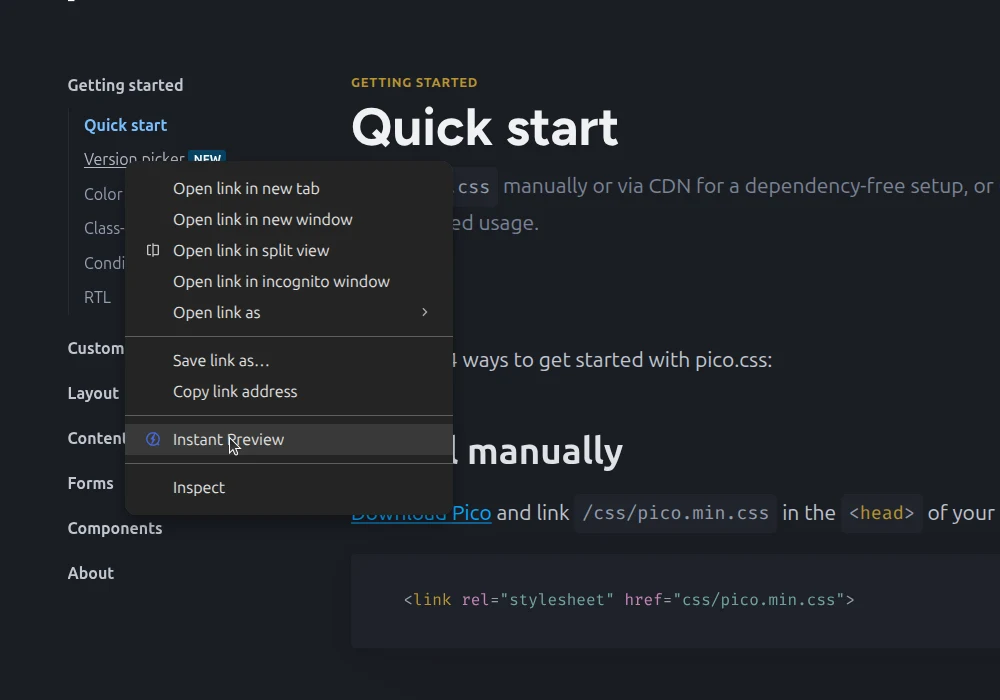
- Right-click a link on the current page and choose Instant Preview. The linked page loads in Chrome’s side panel while the original page stays in view.
- Right-click another link and choose Instant Preview again. The side panel displays the new destination without navigating away from the original page.
Right-click a link to get started. Select an image for a closer look, or watch a closer walkthrough.
Open your first preview
After installing Instant Preview, choose an HTTP or HTTPS link on the page you’re reading. Right-click it and choose Instant Preview.
Context Menu Click is the default trigger, so you can start without changing any settings.
Read without leaving
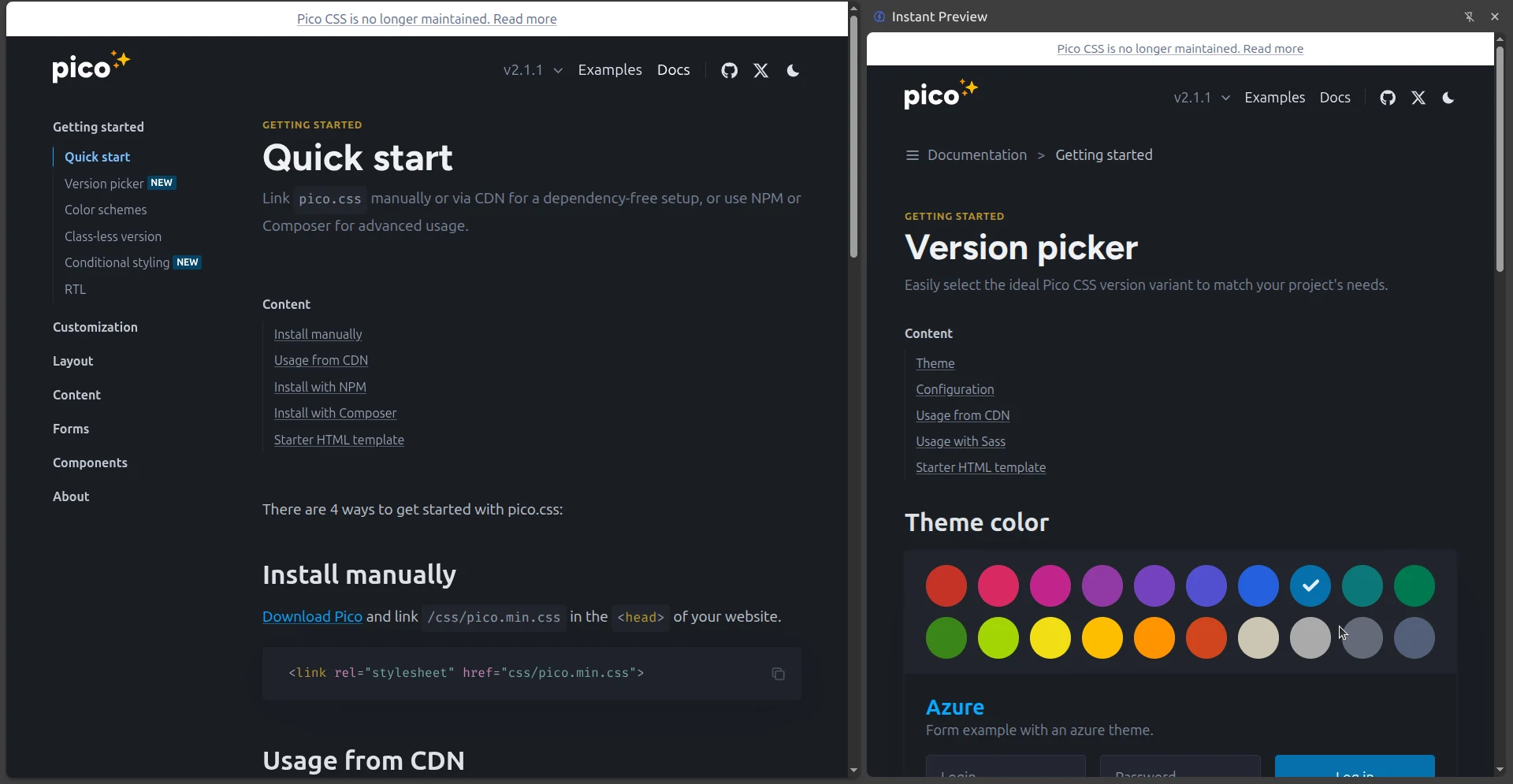
The linked page opens in Chrome’s side panel. Your original page stays in place, so you can read the reference alongside it.
Here, the Quick start page remains on the left while the linked Version picker page opens on the right.
Make it your own
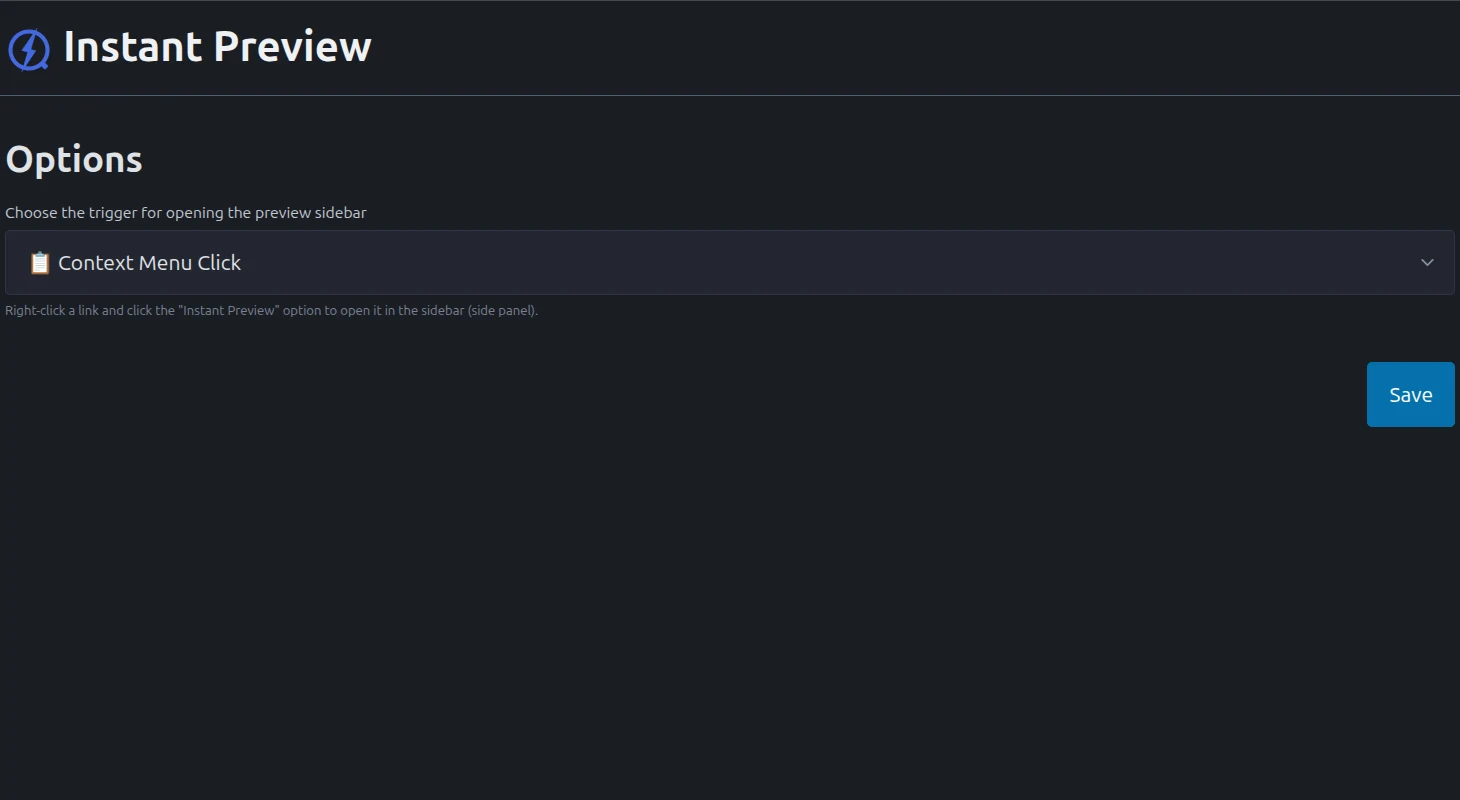
To open Options, right-click the Instant Preview icon in Chrome’s toolbar or Extensions menu and choose Options.
Select one preview trigger, adjust any applicable delay, and click Save. You can keep the default if it already suits you.
Choose how previews open
Select one trigger in extension Options and click Save. Make the interaction fit the way you read.
Adjust long-click and hover delays where applicable. For Hover alone, first open the side panel using the extension icon, then hover over a link.
Get Instant Preview
Get it on the Chrome Web StoreA few things to know
Which browsers are supported?
Use Instant Preview in Chrome 140.0.7289.0 or later.
How do I open my first preview?
The default trigger is Context Menu Click. Right-click an HTTP or HTTPS link on your current page and choose Instant Preview. The target opens in Chrome’s side panel.
Why does hovering not open the panel?
If you selected Hover in extension Options and clicked Save, open the side panel using the extension icon first. Then hover over a link to preview it.